.png)
Send us a quick email with a brief explanation. We will respond and resolve the issue as soon as possible.
Submit ticketSummarize Best Practices & Troubleshooting
Document preparation:
Use the highest quality version available
Ensure scanned documents are legible
For picture-heavy documents, consider extracting text first
If focusing on specific sections, specify in additional instructions rather than editing the document
Effective instructions:
Be specific about scope: "Summarize sections 3-7 only" rather than "Summarize the important parts"
Define your audience: "For client presentation" vs. "For internal legal review"
Specify desired format: "Create a table" or "Use bullet points" or "Write in prose"
Indicate length preference: "One-page summary" or "Detailed extraction"
Highlight priorities: "Focus on financial terms and risks"
Quality control:
Always review output for accuracy
Verify critical facts, dates, and figures
Check for material omissions
If anonymized, manually verify all identifiers were removed
Apply your professional judgment—the summary is AI-generated and not final work product
When not to use Summarize:
Explaining complex concepts for understanding (use Simplify)
Making technical content accessible to non-legal audiences (use Simplify)
Multi-document comparison (use Assistant)
Tasks requiring legal analysis beyond summarization (use Assistant)
Summaries requiring external legal research (use Assistant)
Complex extraction requiring reasoning transparency (use Assistant)
Iterative refinement through conversation (use Assistant)
Output and Download
Where output appears:
The summary appears in the "Document Summary" panel on the right side of the screen.
Download:
Click "Download" to save the summary as a Word document for use in other documents, emails, or client deliverables.
Remember: Summaries are AI-generated and shall not be considered final work product. Always exercise your professional judgment and independently verify important information.
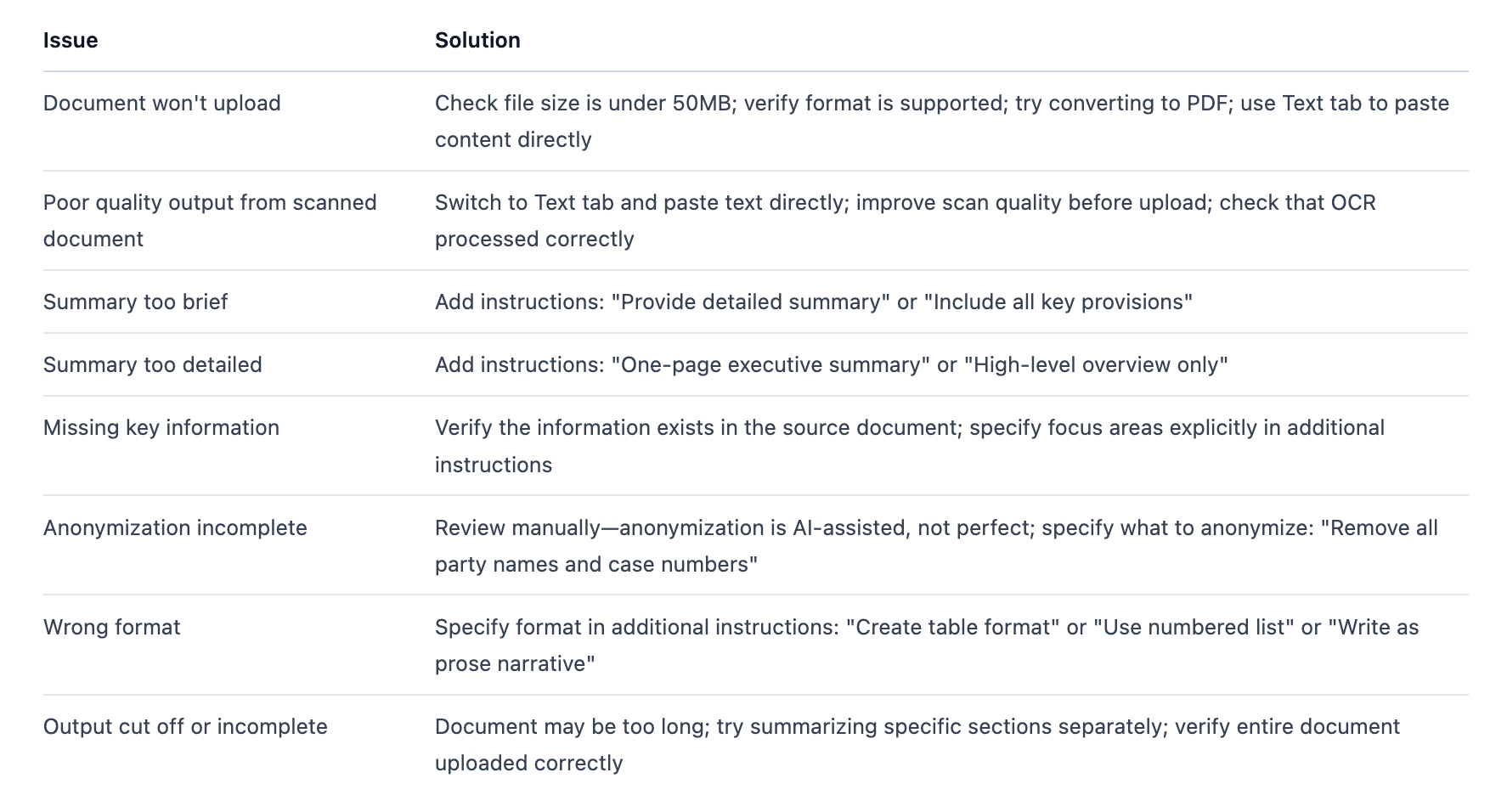
Troubleshooting
Next steps:
For explaining complex content, use the Simplify tool
For analysis or research based on the summary, copy key points into a new Assistant conversation
For iteration and refinement, use the Assistant with the document attached
Save frequently used summaries to your Library for future reference