.png)
Send us a quick email with a brief explanation. We will respond and resolve the issue as soon as possible.
Submit ticketUploading Documents to the Assistant
Attach documents to have the Assistant analyze, review, compare, or extract information.
How to attach documents:
- Drag and drop files directly into the text box, or
- Click the + icon and select "Attachments" to choose files from your computer
Capabilities:
- Supported formats: PDF, DOCX, TXT, XLSX, CSV, XLS, PPTX, EML, MSG
- File size: Up to 50MB per document
- Capacity: Up to 25 documents per query, with a total capacity of approximately 2,000-3,000 pages depending on language (non-latin language require more processing) document density and formatting
- OCR: Scanned documents are automatically processed
Priority of sources:
When you attach documents, the Assistant prioritizes those attachments over searching the web or Library sources, unless you explicitly instruct otherwise. Attached documents represent your immediate focus and will form the primary basis of analysis.
What you can do with documents:
- Analyze - "What are the termination provisions in this agreement?"
- Review - "Review this contract for data privacy risks"
- Compare - "Compare these two NDAs and list all differences"
- Extract - "Extract all payment terms and create a table"
- Summarize - "Summarize the liability provisions"
- Apply law - "Does this employment contract comply with California wage and hour law?"
Attach only relevant documents
The Assistant performs better when you attach only the documents directly relevant to your query. Uploading unnecessary or tangentially related documents can dilute focus and reduce the quality of analysis.
❌ Too many irrelevant attachments:
Attaching your client's entire corporate file (articles of incorporation, past contracts, meeting minutes, correspondence) when you only need analysis of a specific vendor agreement.
✅ Only relevant attachments:
Attaching the vendor agreement, your standard terms template for comparison, and any prior correspondence specifically about the disputed terms.
Tips for optimal processing:
- Picture-heavy documents: Files with extensive images, graphics, or complex formatting (especially PPTX) may not process as effectively as text-based documents
- OCR challenges: Some scanned documents—particularly those with poor scan quality, handwritten notes, or unusual fonts—may be difficult for OCR to process accurately
- Processing tip: If a document fails to process correctly or OCR produces errors, copy and paste the text directly into your prompt instead of attaching the document. The Assistant performs better with direct text input than with poorly scanned attachments
Selecting Library Sources
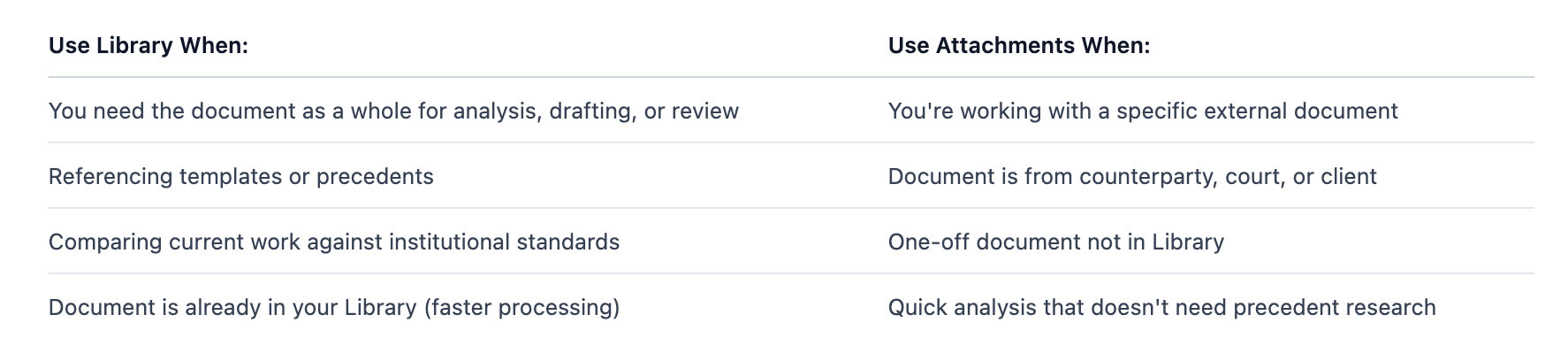
Select library sources when you need documents as a whole for analysis, drafting, or review.
How to select library sources:
- Click the + icon in the chat
- Select "Library" to open the Library Picker
- Search or browse your library folders
- Select up to 25 documents
Faster processing:
Selecting library sources processes faster than uploading the same documents as attachments. When working with documents already in your Library, always use the Library Picker for optimal performance.
When to use Library vs. Attachments: