.png)
Send us a quick email with a brief explanation. We will respond and resolve the issue as soon as possible.
Submit ticketEmail - Best Practices & Troubleshooting
For complex emails:
A highly effective approach is to write a quick rough draft yourself first, then let the tool refine it. Include your rough draft in the additional instructions field.
Example:
"Refine this draft email: [paste your rough draft]. Improve structure, format, syntax, and grammar while maintaining my key points and intent."
This approach works especially well for:
Complex or sensitive communications
Emails where you have specific points but struggle with structure
Messages where you know what to say but want professional polish
Multilingual emails where you want grammar and syntax perfected
Setting up Writing Style:
Upload at least 3 emails, ideally 10 representative samples
Include variety: short and long, different recipients, different purposes
For multilingual work, include samples in all languages you use
Update periodically as your writing style evolves
Using Correspondence effectively:
Paste the full email you're responding to, not just excerpts
Include the sender's name/signature if available for proper salutation
For long threads, include at minimum the most recent 2-3 exchanges
Remove unnecessary quoted text or signatures that don't add context
Providing instructions:
State the purpose clearly: "Respond to client inquiry" or "Send status update"
List key points as bullets if multiple topics: "Cover: (1) hearing date, (2) document request, (3) next steps"
Specify any critical information: "Must mention March 15 deadline"
Indicate recipient context if relevant: "Client is non-legal business owner, avoid jargon"
Note any sensitivity: "This is a difficult message about increased costs"
Quality control:
Review for accuracy of facts and dates
Verify tone matches the recipient and situation
Check that all key points are addressed
Customize the output to add personal touches
Apply your professional judgment — the email is AI-generated and not final work product
When not to use Email:
Email requires legal research or analysis (use Assistant)
Complex strategic emails requiring multi-step reasoning and iteration (use Assistant)
You want to combine multiple tasks in one conversation (use Assistant)
Output and Copy
Where output appears:
The email draft appears in the right panel, including both subject line and body.
Direct editing:
You can edit the email directly in the output box before copying. Click into the text to make any changes, additions, or refinements. This allows you to quickly adjust wording, add details, or personalize the message without needing to regenerate.
Subject line:
The tool generates an appropriate subject line based on your instructions and writing style. You can edit this directly in the output as well.
Copy:
Once you're satisfied with the email (after any direct edits), click "Copy" to paste it into your email client, document, or further editing tool.
Workflow tip:
The combination of AI generation + direct editing creates an efficient workflow:
Generate the initial draft using the tool
Edit directly in the output box for quick refinements
Copy the final version to your email client
Remember: Emails are AI-generated and shall not be considered final work product. Always exercise your professional judgment and independently verify important information before sending.
Troubleshooting
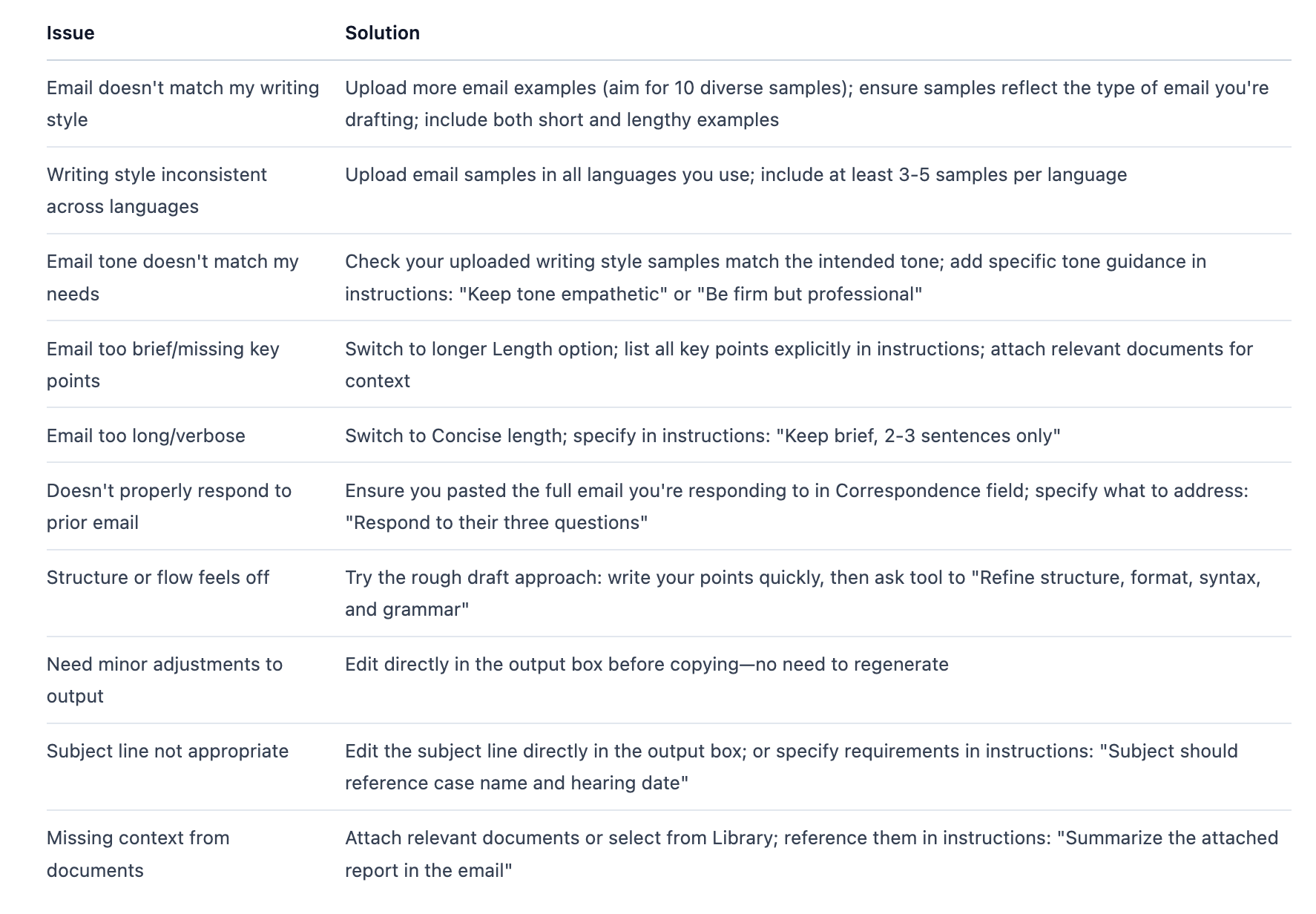
Next steps:
For emails requiring legal research or complex analysis, use the Assistant with relevant documents attached
For iteration and refinement through conversation, copy your draft into an Assistant conversation
Save frequently used email templates or language to your Library for future reference
For strategic correspondence requiring reasoning transparency beyond Email Planning, use the Assistant