.png)
Send us a quick email with a brief explanation. We will respond and resolve the issue as soon as possible.
Submit ticketHow to Use the Library
3.1 Uploading Documents
How to upload:
Navigate to Library from the main menu
Click the Upload or + button
Select files from your computer or drag and drop
Choose the destination folder (or create a new one)
Documents are processed and become searchable
Supported formats:
DOCX
TXT
XLSX, CSV, XLS
PPTX
EML, MSG
File size: Up to 50MB per document
Processing:
Scanned documents are automatically processed with OCR
Documents are indexed for both semantic search and keyword search
Processing time varies based on document length and complexity
Processing status: A check indication shows when a document is processed successfully. If a document fails to process, the indication will show the failure, and you should delete the document and try uploading again.
Who can upload:
All users in your organization can upload documents to the Library and contribute to knowledge creation. This enables collaborative building of your institutional knowledge base as team members capture precedents, templates, and insights from their work.
3.2 Organizing Your Library
Folders:
Create a folder structure that reflects how your team works and thinks about documents.
Recommended organization approaches:
By document type:
- Templates
- Precedents
- Memos
- Policies
- Matter Files
- Forms
By practice area:
- Corporate
- Litigation
- IP
- Employment
- Real Estate
- Regulatory
By client or matter:
[Client Name] - Templates
[Client Name] - Matters
[Matter Name] - Documents
By jurisdiction:
- EU Law
- UK Law
- US Law
- Germany
- France
- Belgium
- Greece
- Cyprus
Best practice: Use a combination that makes sense for your organization. For example:
- Top level: Practice area or document type
- Second level: Document subcategory or jurisdiction
- Third level: Specific matters or clients
Creating folders:
Click New Folder and name it according to your organizational structure. You can nest folders as deeply as needed.
Moving documents:
Select documents and choose Move to to reorganize as your Library grows.
Naming conventions:
Document titles play approximately a 10% role in search results; the remaining 90% is based on the actual content of the file. However, descriptive titles matter practically when using the Library Picker, as they help you identify and select the right documents when browsing. Use clear, descriptive names like "NDA Template - Mutual - Standard Form" rather than "Document_v3_final2" to make documents easy to identify in the picker, even though search will primarily rely on document content.
3.3 Searching Your Library
The Library uses advanced search combining semantic understanding and keyword matching. Search is designed to be over-inclusive, prioritizing precision over narrow filtering.
How search works:
Semantic search (Voyage embeddings): Understands meaning, intent, and legal concepts, finds documents even if they use different terminology
Keyword search (BM25): Finds exact terms, citations, party names, clause titles, and specific language
Content-focused: Search prioritizes actual document content (90%) over titles (10%)
Understanding search behavior:
The Library search is intentionally over-inclusive. When you search or when the Assistant searches on your behalf, the system may retrieve and read through documents that turn out to be irrelevant. This is by design; the system analyzes relevancy after reading, not before, to ensure high precision and avoid missing important sources.
Reasoning transparency:
When the Assistant uses Library search, you'll see in the reasoning process which documents were retrieved and read, how the Assistant evaluated their relevance, and which sources were ultimately selected for the answer. This transparency allows you to understand the full research process, even if some initially retrieved documents were determined to be irrelevant after analysis.
Search tips for best results:
Describe what you need (semantic):
"Force majeure clauses for construction contracts"
"IP assignment provisions for software development"
"Indemnification language limiting scope to direct damages"
Use specific terms (keyword):
"liability cap" "12 months fees"
"Article 28 GDPR processor agreement"
"termination for convenience 30-day notice"
Combine both approaches:
"Our standard data processing agreement template with GDPR Article 28 requirements and processor obligations"
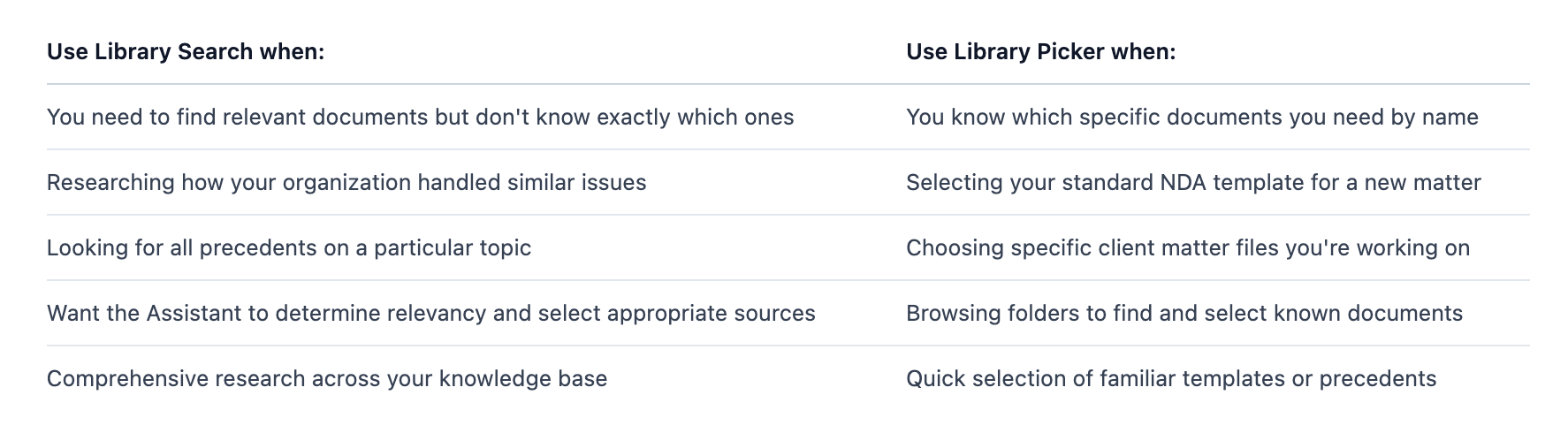
When to use Library Search vs. Library Picker:
3.4 Using Library Sources in Assistant and Tools
Library Picker in Assistant:
When working in the Assistant, click the + icon and select Library to open the Library Picker.
Selecting sources:
Browse your Library folders or search by document name
Select up to 25 documents
Selected documents are processed faster than uploading attachments
The Assistant can access and cite these documents in its analysis
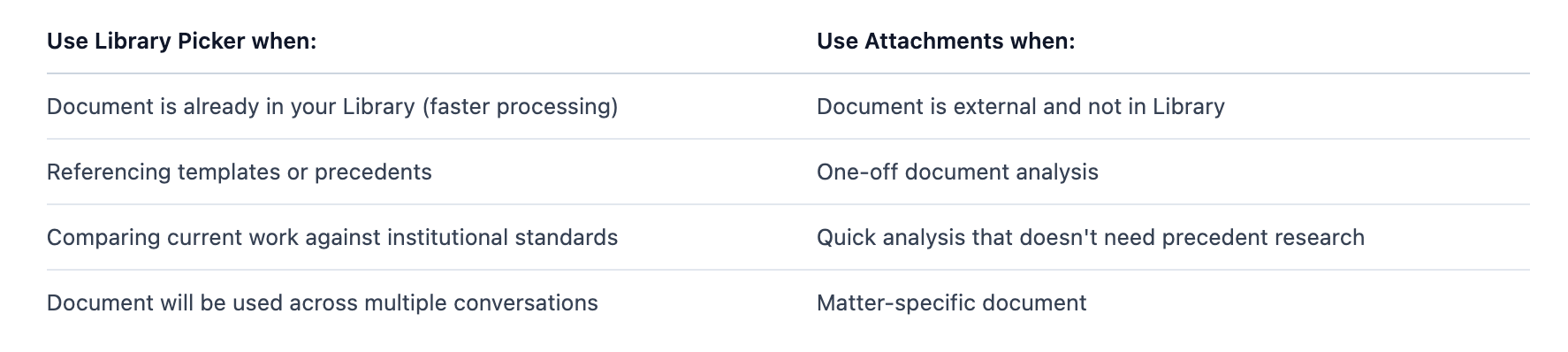
When to use Library Picker vs. Attachments:
Library integration with task-specific tools:
Some task-specific tools (like Email) allow you to select Library sources to provide context for drafting. Use this when you want to incorporate firm standard language, reference templates, or base your output on precedent work.
Library Search by the Assistant:
When you ask the Assistant a question that would benefit from your institutional knowledge, it will automatically search your Library. You'll see in the reasoning which documents were found, read, and evaluated for relevance. The Assistant may read through some documents that turn out to be irrelevant—this over-inclusive approach ensures comprehensive coverage and high precision in the final answer.
3.5 SharePoint and DMS Integration
Connecting SharePoint:
Library can sync with your organization's SharePoint to automatically mirror documents and folder structures.
Benefits of integration:
Documents uploaded to SharePoint appear automatically in Library
Maintain single source of truth in your existing system
No duplicate file management
Automatic updates when SharePoint documents change
Connected SharePoint sites are accessible to all users in your organization (unless configured otherwise)
Who can set up integrations:
Only administrators can connect document management systems or SharePoint to the Library. For more information on setting up and managing integrations, see the Integrations guide or contact support@casepal.co.
Access and permissions:
Once integrated, all users in your organization can access and search documents from connected SharePoint sites, enabling seamless collaboration and knowledge sharing across your team.
3.6 Document Management
Rename documents:
Select a document and choose Rename to update the filename. While titles play a smaller role in search (10%), clear, descriptive names improve usability when browsing the Library Picker.
Delete documents:
Select documents and choose Delete. Deleted documents are removed from search results and can no longer be accessed.
Download documents:
Select a document and choose Download to save a copy to your computer.
Document preview:
Click on any document to preview its contents, see metadata (upload date, size, type), and access management options.